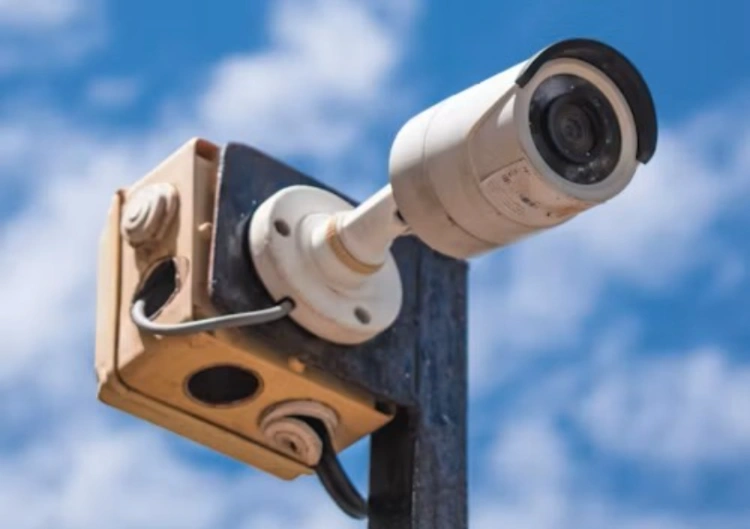
A missing push notification does not always mean the camera missed the person. The device may have detected movement but the phone blocked the app, the event may have been filtered, or the cloud path may have been unavailable while local recording continued. In another case, the app may be ready to receive messages but the camera’s detection zone is pointed at the wrong part of the scene.
The fastest diagnosis follows the notification chain from the scene to the phone: target movement, detection rule, event creation, network transmission, cloud or local service, app account and phone permission. Treat each stage separately. That prevents a user from changing sensitivity when the real issue is a disabled operating-system notification.
First Decide Whether An Event Was Created
Start at the camera or recorder. Walk through the target zone, then check the event list and local recording. If a clip exists but no push arrived, the camera likely created an event and the fault is farther along the delivery chain. If no event or recording exists, inspect the detection mode, schedule, zone, sensitivity, lighting and camera view first.
Motion detection, human-related detection, sound detection, tracking and other intelligent functions are separate capabilities. A camera with an AI label may not have every event type enabled, and a feature may depend on firmware, light, account tier or software. Confirm the exact function in the delivered configuration before promising a particular alert.
Test A Repeatable Movement Route
Use a person walking across and toward the camera, not a hand waved beside the lens. Repeat the route in daytime, low light, backlight and ordinary weather when the camera is outdoors. Check the target size, distance and detection boundary. People behind cars, shelves or gates may be partially visible, so include at least one obstruction test when it reflects the real scene.
Do not promise zero false alerts or perfect recognition. Branches, rain, insects, shadows, headlights and animals can create unwanted events, while small or obscured targets can be missed. The useful output is a clear event policy: which movement matters, what clip is saved, who receives it and what action follows.
Review Detection Settings and The Scene
Check whether motion detection is enabled for the correct hours and whether the active zone includes the route being monitored. Review sensitivity, target filters, human or vehicle options, sound rules, privacy masks and alarm linkage. A notification may be absent because the selected filter excludes the event by design. Record the before-and-after setting when testing a change.
Lighting and mounting can change detection. A camera aimed through glass, toward a bright lamp or across moving foliage may produce a different event pattern from a clear indoor test. Night infrared reflections, white-light switching, rain and low contrast deserve separate checks. The event clip should be reviewed with the full scene, not only the alert thumbnail.
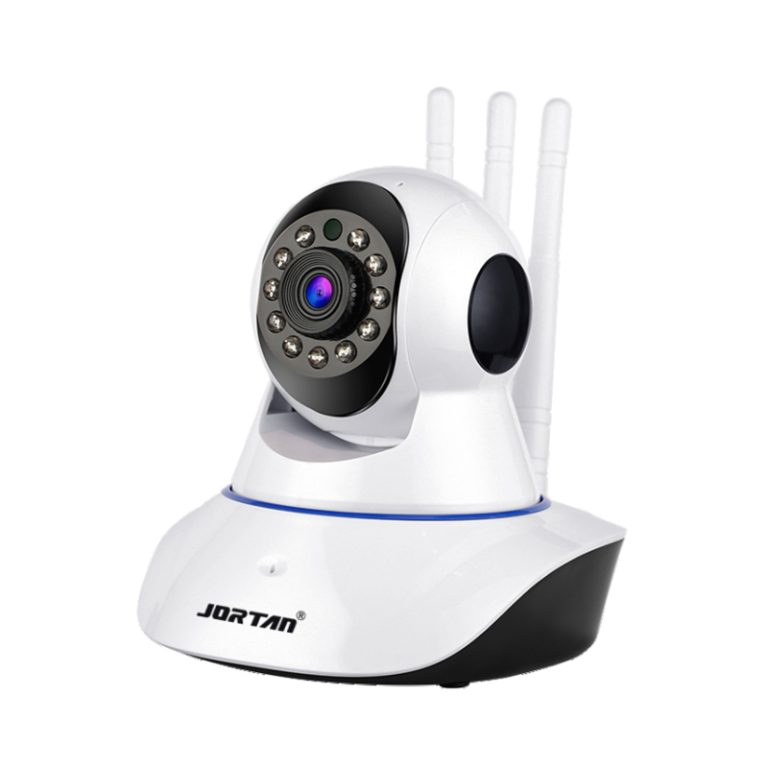
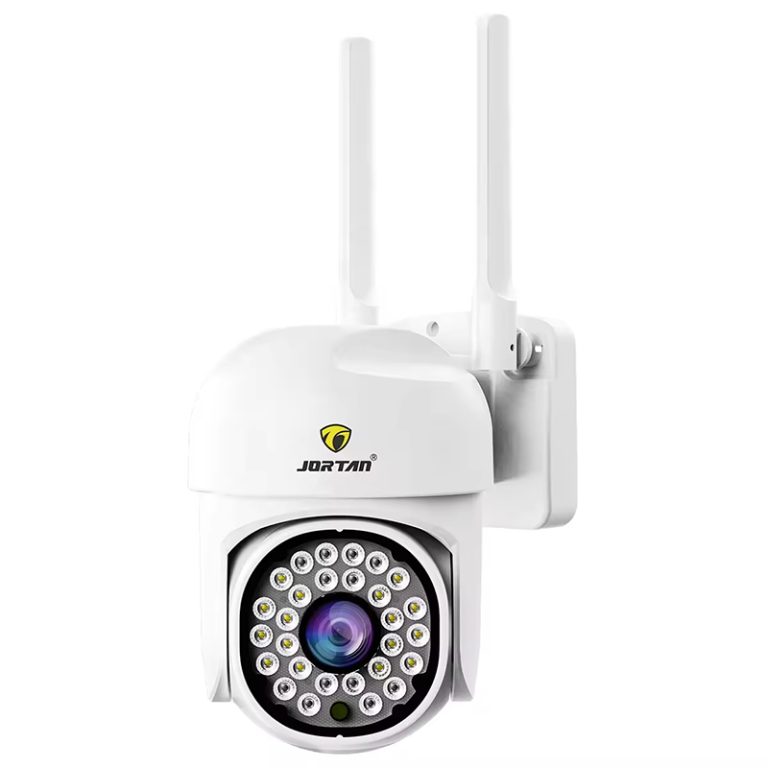
The Jortan3 camera gives a specific product page to place beside an alert-chain review. The buyer should verify the exact detection, storage, app, network and firmware combination rather than treating the model name as proof of every notification function. Product evaluation is strongest when the same event route is repeated on the delivered sample.
Check the Camera app and Account Path
If the event exists locally, inspect the app account, selected device, notification switch, sound setting, quiet hours, shared-user permissions and event filters. Confirm that the phone is signed into the account that owns the camera. A shared user may be allowed to view live video but not receive every alert. Remove stale devices and re-add permissions only after recording the original settings.
app updates and firmware changes can alter menu names, pairing steps, message timing and feature availability. Record the app version, camera firmware, phone system, account role and notification setting during diagnosis. A support team can then reproduce the problem instead of giving generic advice to restart everything.
Check local playback and cloud playback separately. A camera can continue writing to an SD/TF card or NVR during an internet problem, while the phone receives no push. The project knowledge base lists front-end card storage, NVR, NAS, cloud and cloud-edge combinations as distinct paths. The storage result tells whether the event was captured; it does not by itself prove that the app delivery channel worked.
Treat Phone Permissions As A Separate Fault
On the phone, confirm notification permission, sound and banner behaviour, battery restrictions, background activity, mobile-data permission and any focus or quiet mode. Check another authorized phone only as a comparison, not as a permanent workaround. If a second phone receives the same event, the camera and account path may be fine while the first phone has a local permission issue.
A notification may arrive late when the network is weak or the phone is inactive. Measure the time from movement to event creation, event upload and phone receipt where the app exposes those records. A delayed alert and a missing alert have different service responses.
Check Network, Cloud And Local Recovery
Notifications need a working path between camera, router or mobile network, cloud service and phone. Inspect WiFi signal, router status, IP address, bandwidth, 4G service and account connectivity. For a wireless camera, do not confuse a live local connection with reliable remote delivery. For a 4G camera, confirm SIM status and data availability without assuming coverage is constant everywhere.
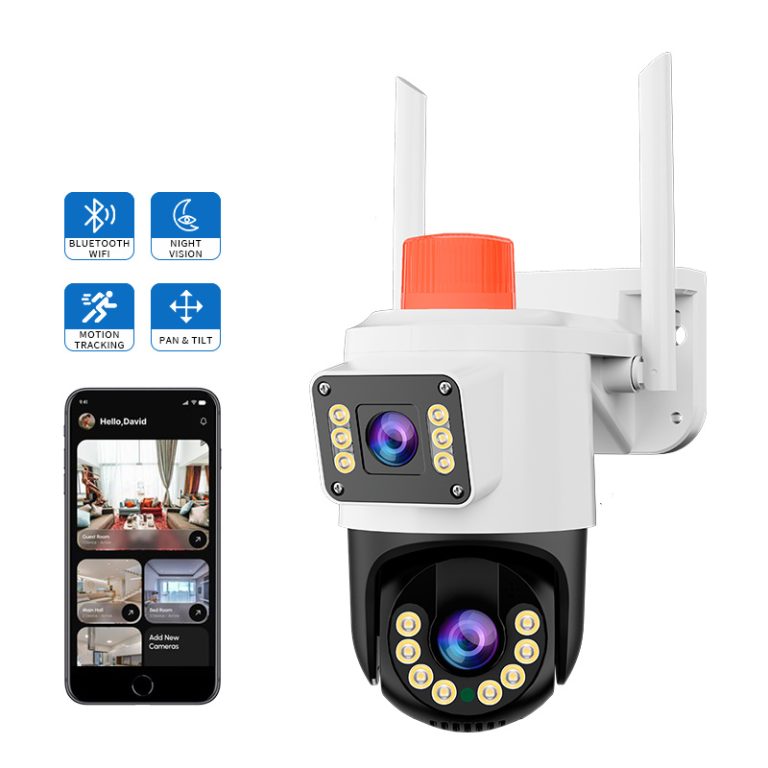
The Jortan4 Al camera is another concrete model page for comparing notification, storage and network requirements. Its exact app behaviour, firmware and event functions should be checked on the intended market version. A useful acceptance test records what happens when internet access disappears but local recording remains available.
Cloud-edge storage can make the diagnosis clearer. Local TF recording during a network failure followed by later upload when the connection returns, where the equipment supports it. In that case, no push during the outage does not necessarily mean no footage. Review the local clip, recovery timing and event upload rule before classifying the system as failed.
Match Alerts To A Practical Response
More notifications are not automatically better. Repeated alerts from branches, insects, rain, traffic or false movement can cause staff to mute the app. A sensible security alert policy gives priority to events that require a response and leaves low-value motion for later review. Human or vehicle filters may help in some scenes, but they still need a site test.
For business sites, write the response beside the event: who receives it, within what time, what clip is reviewed, and when a local visit is justified. Test account sharing and escalation without giving every user unnecessary access. This keeps notification design connected to operations, privacy and evidence handling.
Use the Supplier Brief To Prevent Repeat Complaints
When notification problems repeat across a product line, the root cause may be an unclear app or firmware requirement rather than one defective camera. A supplier brief should include event types, notification recipients, account roles, storage path, network assumptions, app version, firmware, language, reset process and the expected support route.
Jortan’s consumer-oriented camera production, factory capacity, mold and injection resources, and OEM/ODM support can help a distributor align hardware and software requirements for a repeatable line. Jortan gives that discussion a wider product context. The value appears when the approved event workflow, packaging, documentation and after-sales instructions stay together. Buyers can request a camera configuration review with the intended alert scenarios, phone platforms, storage route and user roles.
Conclusion
When a security camera stops sending notifications, trace the chain instead of raising sensitivity at random. Confirm that an event was created, check the scene and detection rule, review app and phone permissions, test the network and cloud path, and compare local recording with remote delivery. A clear event policy and a versioned supplier brief reduce missed alerts, nuisance messages and repeat after-sales work.
FAQ
Q1: Can a camera record an event without sending a notification?
A1: Yes. Local SD/TF or NVR recording may continue when the app, cloud path, phone permission or internet connection fails. Check the local timeline before changing detection settings.
Q2: Why do motion alerts work in the daytime but not at night?
A2: Low light, infrared reflection, white-light switching, target contrast, shadows and the active detection rule can change results. Test the actual night scene and review the saved clip.
Q3: Should every camera user receive every alert?
A3: Not necessarily. Assign recipients by site role and event priority, then verify account permissions, response timing and privacy requirements. Too many low-value alerts can reduce attention to important events.