When an NVR cannot detect an IP camera, the visible symptom is simple, but the cause may be outside the recorder. The camera may be powered but placed on another network segment. It may have an address conflict, an invalid credential, a disabled discovery service, or a stream profile the NVR cannot use. A strong installer starts with the path and the address plan before changing equipment.
Network cameras convert sensor data into a digital stream, compress it, and send it through a selected transmission path to an NVR or software platform. Network, WiFi, 4G, coaxial, and optical-fiber routes are different deployment choices. Detection problems often occur when the chosen route is not matched to the recorder topology.
Confirm the Camera is Actually On the Network
Begin at the physical layer. Check power, link state, cable labels, switch port status, and whether the camera receives an address. A powered camera with no link is different from a camera with a link but no valid address. Use the switch table or an approved discovery tool to see whether the device appears where the installer expects it.
Remove Duplicate and Wrong Addresses
A duplicate address can make a camera appear intermittently or make the NVR connect to the wrong device. Write down the address, mask, gateway, and DHCP status for each camera before assigning a permanent value. If a camera was preconfigured in another project, reset or reassign it according to the approved procedure, then record the change in the commissioning sheet.
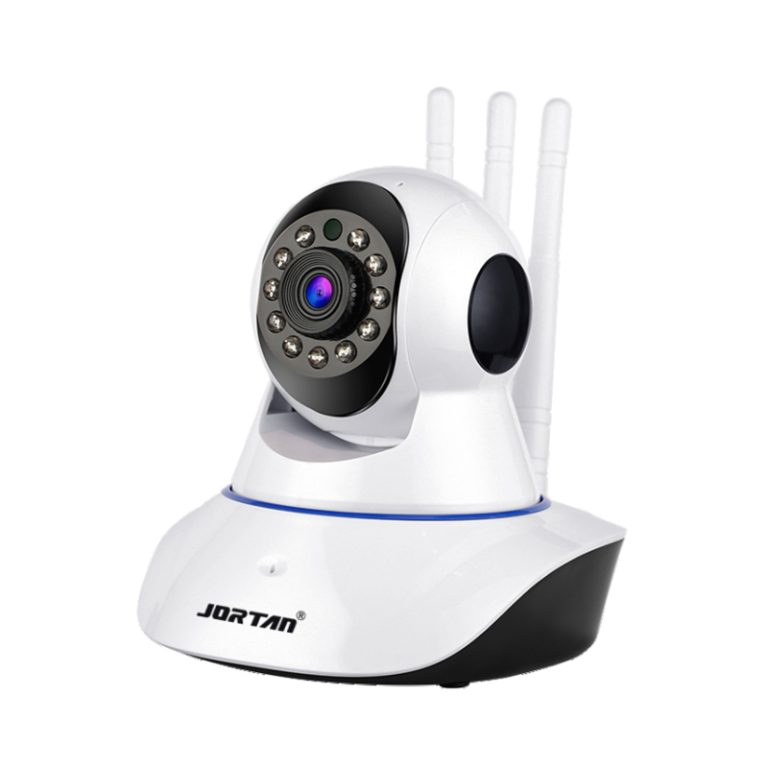
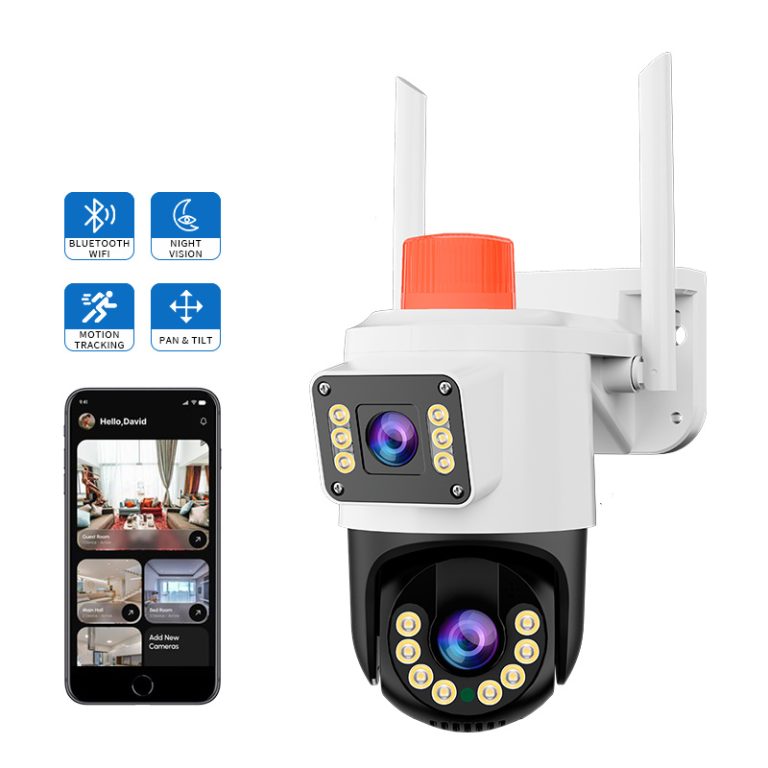
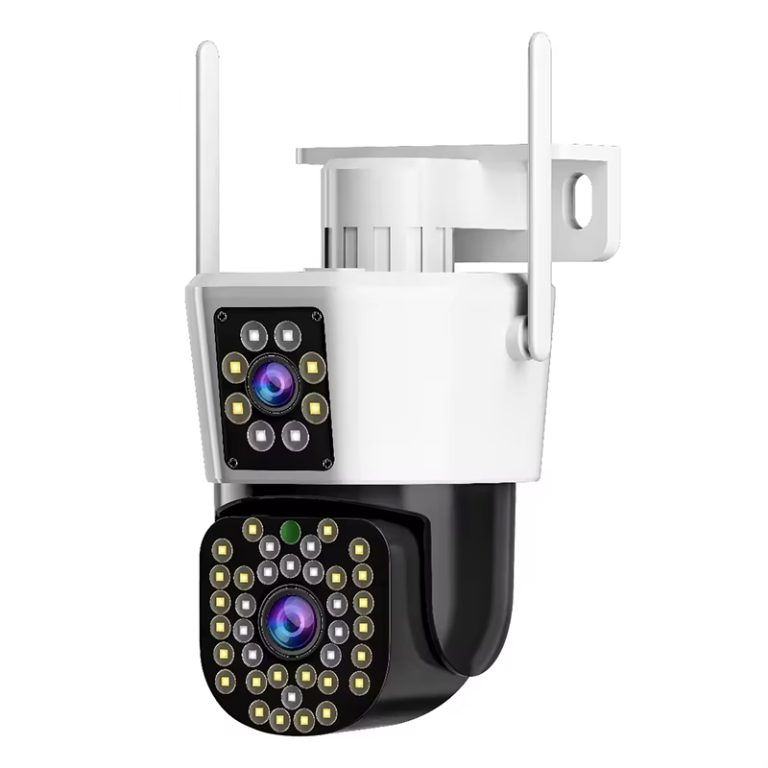
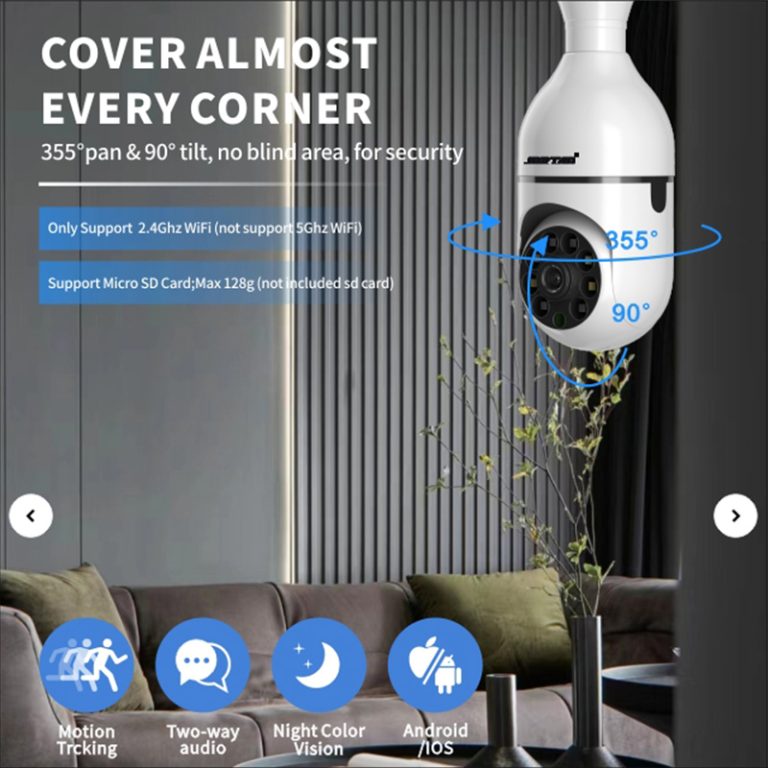
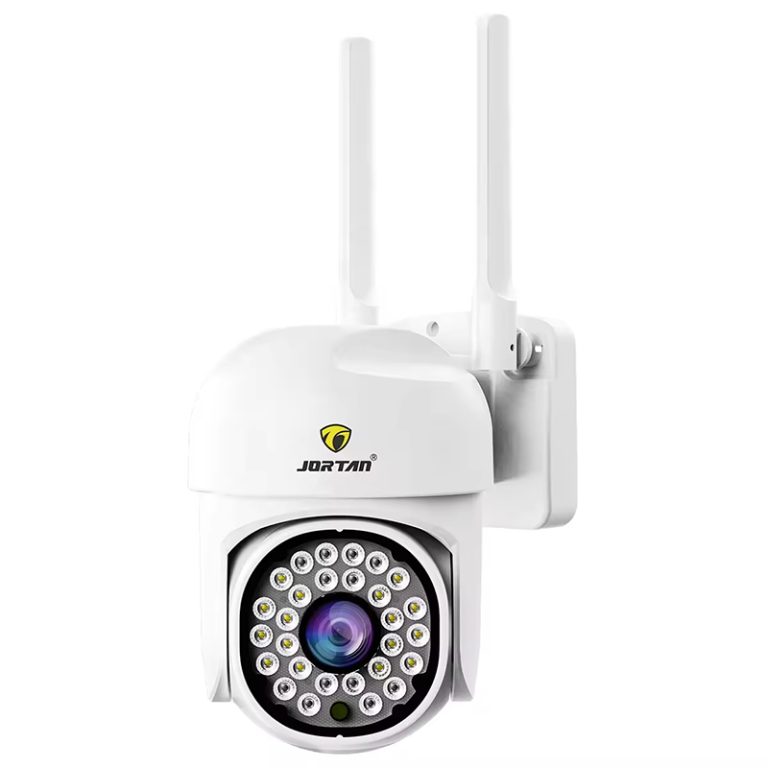
Test one camera on the same switch and segment as the NVR. If detection works there but not at the final location, inspect VLANs, routed links, fiber media converters, and firewall rules. A product such as the JT-8293QJ network camera can be used for a controlled comparison only when its actual network mode and firmware are recorded.
Check Discovery, Credentials, and Compatibility
Automatic discovery is convenient, but it should not be mistaken for a complete compatibility test. Some recorders need manual addition, a selected protocol, a port value, or a matching account. An ONVIF camera may be visible to one NVR and require manual configuration on another because the implementations, profiles, or firmware differ.
Add the Device Manually When Needed
Use the camera address, service port, username, password, and selected profile from the approved configuration. Then test live view, the main stream, the substream, playback, time synchronization, events, and user permissions. If only live view works, the device is not fully integrated. Mark the missing function before handover rather than allowing it to become an after-sales complaint.
The distinction between a discovered device and a usable channel is important for a CCTV system. Ask the supplier to confirm which recorder families, profiles, event functions, and firmware versions were tested. A catalogue label such as ONVIF camera is a starting point for the RFQ, not an all-feature guarantee.
Separate Stream Problems From Detection Problems
An NVR may list a camera but show a blank image, a low-quality fallback stream, or no recording. Those are different faults from failure to detect. Review codec, resolution, frame rate, authentication, time settings, and channel limits. If the NVR has reached its supported stream or bandwidth capacity, a newly added camera may be rejected even though the network is healthy.
Review the Recorder Capacity
It distinguishes encoded network video from other camera outputs and identifies compression as part of network camera behavior. Match the camera stream to the NVR’s accepted formats and available channels. Check whether the recorder supports the required resolution, codec, event type, audio path, and storage workload for the complete project.
An NVR-oriented product such as the JT-8177 network camera system may be useful for a project comparison, but final approval still belongs to the selected recorder, firmware, switch layout, and recording policy. Do not substitute a different NVR during the test and assume the result will transfer automatically.
Create a First-Response Detection Checklist
The first-response order is confirm power, read the link, locate the address, test the same network segment, remove address conflicts, verify credentials, add manually, inspect stream compatibility, and test recording. This sequence reduces random changes. It also gives the project manager a clear explanation of what has been ruled out and what still needs supplier input.
Escalate With the Exact Combination
Send the NVR model, firmware, camera model, firmware, address plan, switch layout, credentials method, stream settings, and screenshots of the error. The IP camera can help frame a replacement path, while an NVR integration support request should include the exact recorder and required functions. A precise RFQ is faster than a general request for a compatible camera.
Keep the approved combination in the project file. When a replacement unit arrives, compare its address behavior, firmware, stream profile, event mapping, and recorder response with the approved sample. This prevents a second installation from repeating the same detection problem under a different channel number.
Conclusion
An NVR that cannot detect an IP camera should be checked from the cable and address plan through discovery, credentials, profiles, streams, recorder capacity, and recording. Detection is only the first gate. Integrators who document the exact camera, NVR, firmware, network segment, and required functions can separate a site issue from a compatibility limit before the project reaches handover. Jortan can frame the broader solution range.
FAQ
Q1: Does no NVR detection always mean the camera is defective?
A1: No. Power, cable, address conflicts, VLANs, credentials, discovery settings, firmware, and recorder compatibility can all produce the same symptom. A detection failure should be closed only when the installer can add the camera, view the approved stream, record it, search playback, receive the required event, and recover after a restart.
Q2: Should an ONVIF camera always be added automatically?
A2: No. Automatic discovery depends on the recorder and network. Manual addition may be required, and the resulting streams, events, permissions, and recording still need testing.
Q3: What is the fastest first check?
A3: Confirm power and link state, then place the camera and NVR on a known-good segment and verify the camera address. This quickly separates physical and network causes from recorder configuration.